Tools for Blocking Starlink: Locating a “Clear Sky” in the Forest
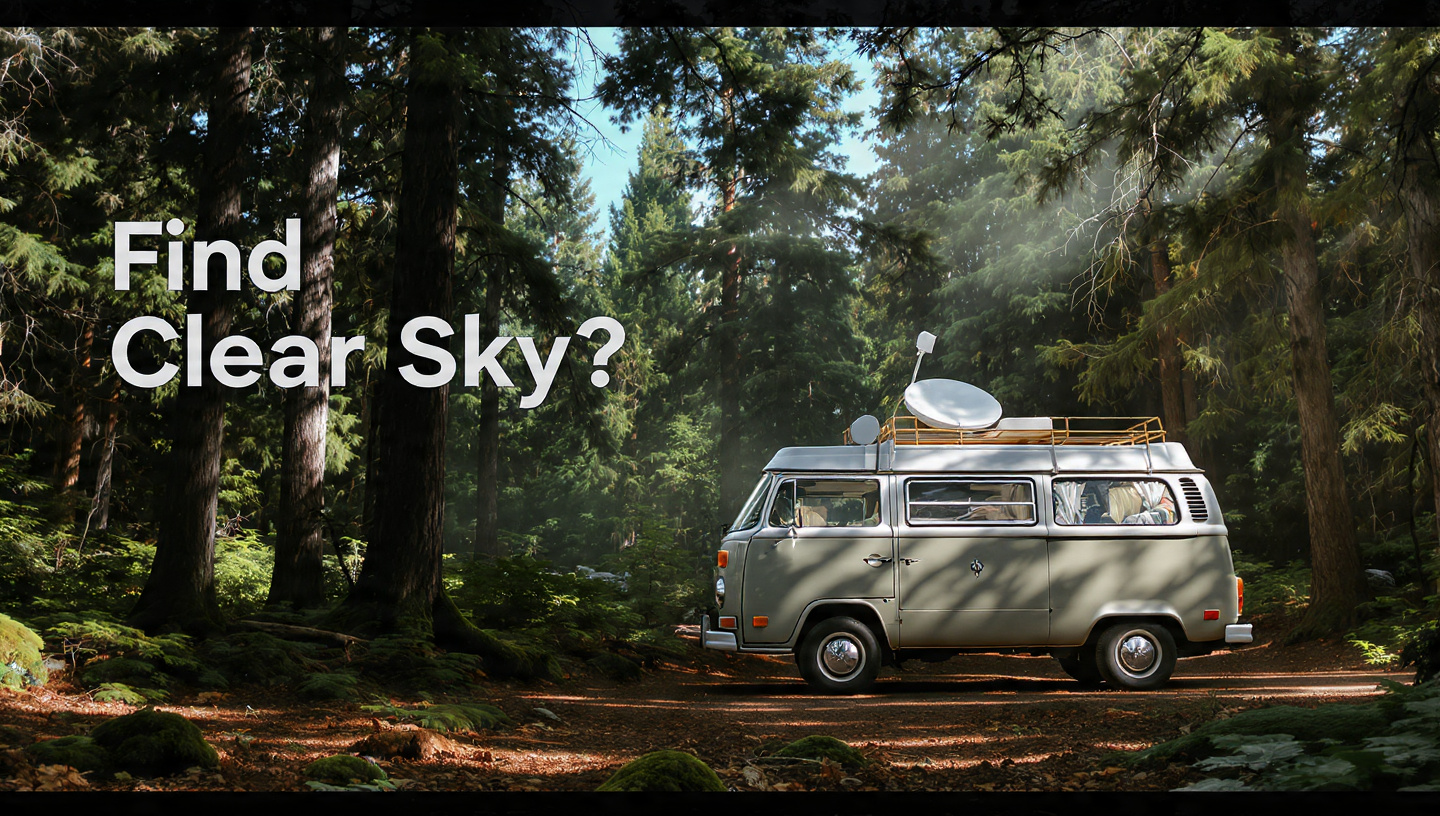
At long last, you’ve succeeded. The air is cool and still, and you’ve found the ideal parking spot beneath a grove of old oak trees. When you launch the Starlink app, though, all you see is a sea of red. “Obstructed.” A 2 Mbps nightmare has just replaced your 200 Mbps dream.
When you’re deep in the forest, trees will inevitably block your high-speed satellite internet connection. However, a stable signal does not necessitate a 100-foot clearance. All you need is expert-level knowledge of the Starlink Obstruction Tool.
Despite being encircled by trees, this guide will teach you how to decipher the app’s “hidden” signals and locate that one ideal window of sky.

1. One Reason Why a Single Leaf Is Important
Starlink is continually “handing off” your connection between thousands of satellites travelling at 17,000 MPH, in contrast to traditional satellite TV, which pointed at a fixed spot.
Imagine a relay race analogous to this. A connection drop will occur if, during the process of switching satellites, your dish becomes obscured by even a single pine branch, blocking your view of the previous satellite. Because of this, your most crucial weapon is the Starlink Obstruction Tool. The search for “space” is narrowed down to the precise orbital paths that the satellites are following.
2. The Right Way to Use the “Find an Install Location” Function
When they first start out, most people just stand by their van, aim their phone upwards, and cross their fingers. It was an error. A “Clear Sky” in the forest requires meticulous searching.
-
Match the Height: Hold your phone at the precise height of the dish. Hold your phone ten feet in the air if you intend to use a diy pvc pole mount. There can be a 50% reduction in obstacles due to the height difference between the ground and 10 feet.
-
The “Pac-Man” Scan: Slowly follow the dots as you use the scanner. Relax if the app indicates red areas. Locate the spaces marked with a “Blue” logo. Aligning your dish with a natural gap in the tree canopy is sometimes as simple as moving your van 3 feet to the left.

3. Understanding the Blockage Map (After 12 Hours)
After 12 hours of operation, Starlink will produce a “Live Obstruction Map.” This is the real deal, not like the phone scan—this is how the dish feels.
-
Solid Red/Tangerines: These are substantial items, such as thick branches or tree trunks. There is no way to “wait out” these obstacles. The dish needs to be moved.
-
Red Dots or Fringe: Common examples include leaves or thin branches. Even though Starlink’s software has gotten significantly better at “ignoring” light foliage by 2026, “Micro-Outages” (lasting 0.1s to 1s) will still be caused.
-
The “Clarke Belt” Gap: An empty, clear band (often in the south) may appear on your map. No, that’s not an obstruction; it’s a “No-Transmit Zone” set up to protect traditional geostationary satellites from interference. Put it out of your mind!
4. Nomads and the “North” Rule
An ideal orientation for Starlink dishes in the Northern Hemisphere (North America) would be to point northward.
Expert Advice: If you can choose between two locations with huge trees facing different directions, always go with the one with the larger tree facing south. Maintain a perfectly clear view of the northern horizon. The Starlink Obstruction Tool will display an increase in the number of “Critical” scan zones in the northern hemisphere, confirming this.
5. Handling “Partial Obstruction”
What if parking under trees is a requirement? Internet connectivity will remain intact even if the app indicates that you are “Partially Obstructed,” but you may experience an increase in latency (ping).
-
Streaming/Browsing: You won’t even notice.
-
Zoom/Gaming: Require periodic disconnections.
-
The Manual Fix: Locate the “Center of the Gap” using the provided tool. In cases where the automatic mode failed to direct the “beam” through an opening in the leaves, manually tilting the dish (when using a Gen 3 kickstand) is often the solution.
6. The “Long Cable” Strategy: A Real-World Hack
You don’t need to have your dish and van in the exact same spot in the woods. A 75-foot distance from your campsite can be achieved by using the Starlink Obstruction Tool. Locate an open area, no matter how tiny, and set up a tripod to hold the dish there.
Extra Perk: Your vehicle stays cool in the shade while your dish faces the sun and gets a clear view of the satellites.
7. The Final Decision: Rely on the Statistics, Not Your Senses
From Earth, the sky appears vast, but from a Starlink dish, it appears as a fast-paced highway. Before you even think about unboxing your cables, take five minutes to use the Starlink Obstruction Tool.
Months have passed in the dense Oregon woods where Rapidove is located. What the app shows is what the dish sees, so finding a “Clear Sky” isn’t a matter of luck, as we discovered.

FAQs
Q: In the event of rain, will the obstruction tool be affected? A: When it rains heavily, the signal may “Signal Fade,” but it won’t be marked as a “Obstruction” in red on the map. Only real-world items, such as trees or buildings, can be considered obstructions.
Q: Do I need to reset my obstruction map frequently? A: Whenever you relocate your dish or vehicle. After a few hours of receiving erroneous “Obstructed” alerts, the old map will no longer be useful in the new location.
Q: Will the tool still work at night? A: For sure! This app makes use of the Augmented Reality (AR) capabilities of your mobile device. The app can determine the obstacles if you can make out the tree lines against the starry sky.